

Yes - you can print on notebook paper using a standard inkjet or laser printer, without any hardware modifications. Standard Letter-size (8.5 x 11 inches) and A4 notebook sheets feed through most home and office printers just fine. The real question is whether your specific paper is heavy enough and smooth enough to produce a usable result. Most cheap classroom notebook paper runs 60–70 gsm - thin enough that inkjet ink bleeds through to the back and laser heat curls the sheet on exit. Move up to 80 gsm, dial in your settings, and printing on notebook paper stops being a gamble.
This guide covers what makes notebook paper behave differently from standard printer stock, which gsm ranges work for which printers, how to get text to align with the ruling, and what to do when things go wrong.
Contents
- Why Notebook Paper Behaves Differently in a Printer
- Paper Weight (GSM) - The Number That Decides Everything
- Notebook Paper Ruling Formats and Line Spacing
- Inkjet vs. Laser: Which Printer Works Better on Notebook Paper
- How to Print on Notebook Paper (Step by Step)
- 5 Things That Determine Whether It Actually Works
- Common Problems When Printing on Notebook Paper - and What to Do
- Can You Print on Spiral-Bound Notebook Paper?
- When a Home Printer Is No Longer the Right Tool
- Frequently Asked Questions

Why Notebook Paper Behaves Differently in a Printer
Notebook paper was designed for pens and pencils. That single design decision creates most of the problems people run into when they try to run a sheet through a printer.
Regular printer paper - the kind you buy by the ream - is manufactured with a tight fiber structure and often carries a light surface coating that controls exactly how far ink spreads on contact. Ink lands, spreads to a predictable radius, and dries fast. Notebook paper has a more open, porous surface. When liquid inkjet ink hits that surface, it doesn't sit - it wicks into the fibers, creating fuzzy text edges and watercolor-style smudging on images. The difference is close to what happens when you drop water on a paper towel versus wax paper. Unlike purpose-built printing stock, which is engineered around printer ink from the start, notebook paper has no such design priority.
Laser printers add a separate problem. They fuse toner by heating it to between 150°C and 200°C as paper passes through the fuser unit. Paper at 75 gsm or below can't handle that thermal load without curling - sometimes severely enough to jam the printer on exit. The thinner the sheet, the more dramatically it warps. Above 80 gsm, most notebook paper handles the heat without significant trouble.
Neither issue makes printing on notebook paper unreliable. They make the paper spec matter more than it would on standard copy stock.
Paper Weight (GSM) - The Number That Decides Everything
GSM - grams per square meter - is the single most useful number for assessing whether notebook paper will print cleanly. Standard notebook paper ranges from 0.06 mm thick at the light end to around 0.16 mm at the heavier end, covering roughly 50–120 gsm. Here's how each range performs in practice:
| GSM Range | Thickness (approx.) | Inkjet Result | Laser Result | Best Use |
|---|---|---|---|---|
| 50–65 gsm | 0.06–0.09 mm | Heavy bleed-through; unusable | Curls and jams on exit | Not suitable for printing |
| 70–75 gsm | 0.09–0.11 mm | Works at 70–80% ink density | Marginal; noticeable curl | Personal drafts, single-sided only |
| 80–90 gsm | 0.10–0.13 mm | Clean text, good color | Sharp, minimal curl | Home and office printing, both sides |
| 90–120 gsm | 0.12–0.16 mm | Rich color, near-zero bleed | Close to copy paper quality | Premium journals, branded use |
The 80 gsm threshold is where consistent results become the norm rather than the exception. It's the same floor used for professionally manufactured notebook inner pages - the minimum at which paper tolerates both inkjet ink spread and laser fuser heat without compromising either side of a double-sided print.
If your notebook doesn't show a gsm spec on the packaging, hold a single sheet up to a bright window. If you can clearly read text through it from the back, it's almost certainly under 75 gsm. An opaque sheet means you're probably in printable territory.
Paper Brands Worth Knowing
Not all notebook paper performs equally at the same nominal gsm. Manufacturing tolerances vary, and budget paper labeled at 70 gsm often prints noticeably worse than premium 70 gsm stock. If you're buying specifically for printing, these brands have a consistent track record:
- Rhodia: French-made, 80 gsm across most product lines. Smooth surface, minimal inkjet bleed, handles laser heat well.
- Clairefontaine: 90 gsm on most pads. Excellent surface uniformity; one of the more reliable choices for inkjet printing.
- Leuchtturm1917: 80 gsm. Slightly textured - good for laser, acceptable for inkjet text, less ideal for image printing.
- Mead / Five Star (US): College-ruled loose-leaf at 60–75 gsm depending on the product. Workable for inkjet drafts at reduced density, but not a stable base for anything beyond single-sided text.
Notebook Paper Ruling Formats and Line Spacing
If you're printing onto pre-lined notebook paper and want text to land between the lines rather than on top of them, you need to match your document's line spacing to the paper's ruling. The four standard formats in US and international notebooks are:
| Format | Line Spacing | Common Context | Printing Notes |
|---|---|---|---|
| College Ruled | 7.1 mm (¼ inch) | High school, university, office | Most compatible; tight calibration required |
| Wide Ruled | 8–10 mm | Elementary school, planners | Forgiving of 1 mm alignment errors |
| Universal / Standard | 6–9 mm | General-purpose, international | Safest default when spec isn't labeled |
| Narrow Ruled | 6.35 mm | A5, B5, pocket notebooks | 10pt font minimum; precise setup required |
College-ruled paper (7.1 mm) is the format most people in the US are working with, and it's more demanding to print on than it looks. At 7.1 mm line height, a 1 mm alignment error - barely perceptible in a Word document at normal zoom - is noticeable on the physical page, particularly in the lower half where small offsets have compounded across many lines. The process to get it right is straightforward: measure the actual spacing on your paper with a ruler, set your word processor's paragraph line spacing to that exact value (note that 1 mm ≈ 2.84 pt, so 7.1 mm = approximately 20.1 pt), and always run a test on plain copy paper before putting any notebook sheets in the printer. For standard paper dimensions across US Letter, A4, A5, B5, and other formats, papersizes.org maintains a reliable reference table.
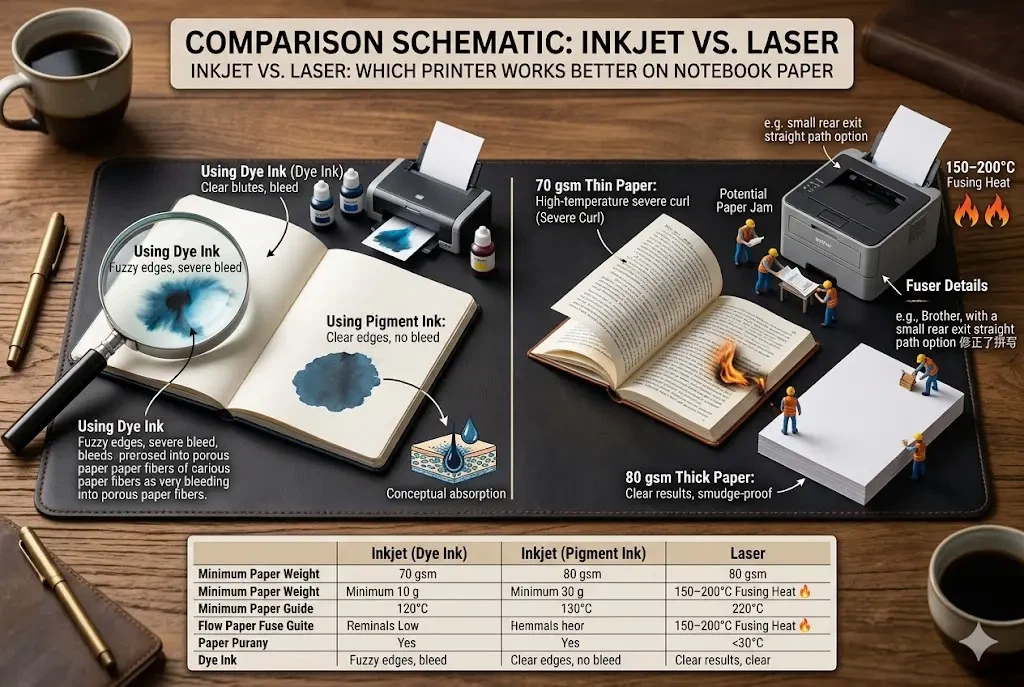
Inkjet vs. Laser: Which Printer Works Better on Notebook Paper
Inkjet is the more forgiving choice for lighter or thinner notebook paper. Laser delivers sharper, more permanent results once the paper is heavy enough to handle the heat. Here's how they compare directly:
| Inkjet (Dye Ink) | Inkjet (Pigment Ink) | Laser | |
|---|---|---|---|
| Minimum paper weight | 70 gsm | 70 gsm | 80 gsm |
| Edge sharpness on notebook paper | Moderate (bleed risk) | Good | Excellent |
| Color output | Rich but spread-prone | Good, less saturation loss | Accurate, less vibrant |
| Curl risk on thin paper | Low | Low | Moderate below 80 gsm |
| Best for | First attempts, mixed media | Text and line art | Text-heavy documents, durability |
Inkjet Printers
Inkjet is the safer starting point for most people printing on notebook paper for the first time. No heat, a gentler paper path, and tolerance for stock as light as 70 gsm - it handles a wider range of notebook paper without catastrophic failures. The issue is ink bleed. Standard dye-based inkjet ink is water-based, and porous notebook paper absorbs it quickly, spreading the ink laterally through the fibers. Text edges go soft; images take on a watercolor quality.
One change makes a significant difference: switching from dye-based to pigment-based ink cartridges. Pigment ink particles bind to the paper surface rather than soaking into the fiber. On uncoated notebook stock, that translates to sharper text edges and noticeably less spread - the kind of difference that turns "acceptable draft" results into clean, usable output. Not every consumer inkjet supports pigment cartridges (Epson EcoTank and Canon PIXMA Pro lines do; many budget models don't), but if yours does, it's worth the switch before anything else.
Laser Printers
Laser printing on notebook paper produces cleaner, more durable text than inkjet - but only once the paper is heavy enough to survive the fuser. The 80 gsm minimum isn't a suggestion; it's the point at which paper stops curling predictably under 150–200°C fusing heat. Below that threshold, the behavior ranges from mild annoyance (slight curl that flattens with pressure) to repeated paper jams that require clearing after every second sheet. At 80–90 gsm, results are sharp and smudge-proof in a way inkjet on the same paper isn't. The paper weight standards used in textbook and educational printing specify 80 gsm as the inner-page minimum for exactly this reason.
One hardware note worth knowing: many Brother and HP laser models have a rear paper exit option - sometimes labeled "straight paper path." Enabling it bypasses the curved internal feed route and reduces exit curl on borderline-weight paper more reliably than any settings adjustment. If you're planning to run notebook paper through a laser printer regularly, it's worth checking whether your model has this feature before buying.
How to Print on Notebook Paper (Step by Step)
Method 1: Print Content Onto Pre-Lined Notebook Paper
- Measure the paper before opening your document. Confirm the sheet dimensions and line spacing with a ruler. Many imported notebooks - A5, B5, and non-US formats in particular - aren't true Letter or A4 size. A 3–4 mm discrepancy in sheet width causes margin drift that is small on page one and obvious by page five. Write the measurements down.
- Set the paper size manually in your printer driver. On Windows: File → Print → Printer Properties → Paper/Quality tab. On Mac: File → Print → Paper Size. If the sheet isn't a standard size, enter custom dimensions. This step alone eliminates most misalignment failures on non-standard notebook paper - more than any other single adjustment.
- Match your document's line spacing to the paper's ruling. Use the measurement from step one. In Word or Google Docs, set paragraph line spacing to "Exactly [x] pt" - multiply your mm measurement by 2.84 to convert. View the document at 100% zoom in print preview, not "fit to window" which doesn't give accurate spacing feedback.
- Reduce ink or toner density to 70–80% of normal. Full density on uncoated porous paper causes saturation, wrinkling, and slow dry times. Draft mode or a manually reduced density setting, counterintuitively, produces cleaner output on notebook paper than standard quality settings.
- Run a test print on plain copy paper first. Print the first page on regular 75–80 gsm copy paper. Lay it over your notebook sheet and hold both up to a bright window. Check that text falls between the ruled lines, margins clear the punch holes, and nothing clips at the edges. Three minutes here prevents the most common cause of wasted notebook paper.
- Feed one sheet at a time through manual or bypass tray. Auto-feed mechanisms grab multiple thin sheets simultaneously. Single-sheet manual feeding prevents jams on lightweight notebook paper almost entirely. If your printer has a rear paper exit, use it for laser jobs to reduce curl.
- Keep content at least 1 inch from the punch holes. US standard three-hole punch positions sit 1.25 inches from the left edge. Keep all content at least 1 inch from the left margin. On paper with a pre-printed margin line, use that as your boundary.
Method 2: Print a Lined Template on Blank Paper
If the goal is the look of notebook paper rather than actual lined stock, this is faster and more consistent. Download a ruled template in PDF format - Printable Paper and Vertex42 both carry free college-ruled and wide-ruled options - open it in a word processor, type directly onto the template, and print on standard 75–80 gsm copy paper. Every feeding, gsm, and alignment problem disappears. It prints reliably every time, at the cost of not being actual notebook paper.

5 Things That Determine Whether It Actually Works
- Paper weight (gsm): 80 gsm is the practical minimum for reliable results with both inkjet and laser. Below 75 gsm, expect bleed-through on inkjet and curl on laser. This single variable accounts for more failed notebook paper print jobs than printer brand, settings, and technique combined.
- Ink type on inkjet: Dye-based ink spreads into porous fibers. Pigment-based ink bonds to the surface. On uncoated notebook paper, switching to pigment cartridges - where supported - is the highest-return single change you can make to print quality.
- Laser fuser temperature vs. paper weight: Laser printers heat toner to 150–200°C. Paper below 75 gsm curls under this heat. If you're laser printing on notebook paper, 80 gsm isn't a preference - it's a minimum spec.
- Line spacing calibration: Your document's paragraph line height must match the paper's ruling exactly - 7.1 mm for college ruled, 8–10 mm for wide ruled, 6.35 mm for narrow ruled. A 1 mm error is invisible in preview and compounds down the page in print.
- Feed method: Single-sheet or manual bypass feed prevents jams caused by thin paper bending in the auto-feed pickup roller. It's the simplest, most consistently skipped fix in the whole process.
Common Problems When Printing on Notebook Paper - and What to Do
Most failures trace back to three things: paper that's too light, too much ink, and trusting the auto-feeder with stock it wasn't designed for. Here's how the specific problems play out, and how to address them.
Ink Bleeding or Fuzzy Text Edges
This is the most common inkjet problem on notebook paper, and it's a fiber issue, not a printer issue. Porous uncoated paper absorbs liquid ink quickly and spreads it laterally through the fibers before it dries - the more porous the paper, the worse the bleed. In production work, this is the problem that brings clients to professional printing most often: they can accept some misalignment, but smeared text on a branded notepad isn't recoverable.
Fix it in order: first, reduce ink density to 70–80% in your driver settings - this alone resolves moderate bleeding on 75–80 gsm paper. Second, if your printer supports pigment-based cartridges, switch to them; pigment bonds to the surface rather than soaking in. If both adjustments still leave soft edges, the paper is too light and porous for inkjet printing at any quality setting. Move to 80+ gsm stock, or use a laser printer for that job.
Paper Curling After Laser Printing
Three checks, in order:
- Is the paper at least 80 gsm? If not, that's the direct cause. Lighter paper can't hold its shape through fuser heat. Move to heavier stock.
- Does your laser printer have a straight paper path (rear exit) option? Enable it - bypassing the curved internal feed is the most effective single fix for exit curl, more so than any toner or temperature setting.
- Already printed and the pages are curled? Stack them face-down under a heavy, flat object overnight. This flattens most curl without affecting the print.
Paper Jams
Jams happen for one of three reasons: the paper is too thin to stay rigid through the feed mechanism; the sheet edges are uneven from perforation or spiral tearing; or the auto-feeder picks up multiple thin sheets in one grab. In that order: switch to single-sheet manual feed, trim uneven edges with scissors before loading, and never stack lightweight notebook paper in the auto-feed tray. What presents as a hardware jam is almost always a paper weight or feed method problem - understanding how paper surface and spec choices affect mechanical print behavior applies here as much as to color output.
Printed Text Misaligned With the Lines
Measure the ruling with a ruler. Set your word processor's line spacing to match exactly. Print a test on plain paper, overlay it on the notebook sheet against a bright light, and adjust before using any lined stock. That sequence takes three minutes and eliminates the single most common cause of wasted notebook paper in any printing setup.
Colors Look Washed Out
This isn't a settings problem - it's what uncoated porous paper does. Ink particles spread into the fibers on contact rather than staying at the surface, reducing apparent color saturation by roughly 20–30% compared to coated or semi-gloss stock. No setting compensates for it. For diagrams, reference illustrations, and simple graphics, notebook paper at 600 dpi is functional. For anything requiring accurate color - product photos, brand identity materials - the right substrate is matte-coated or photo paper, not notebook stock.
Ink Showing Through to the Back Side
Paper is too light, ink density is too high, or both. Drop density to 70% first. If show-through continues, the paper is under 75 gsm - move to 80+ gsm for double-sided work. Below 65 gsm, both sides interfere with each other visually and double-sided printing is effectively unusable.
Can You Print on Spiral-Bound Notebook Paper?
Yes - but the spiral coil creates a mechanical problem that loose-leaf paper doesn't have. The binding sits at the sheet edge and catches inside printer feed mechanisms, particularly in laser printers where the internal paper path curves sharply through the fuser.
The straightforward fix is to remove sheets before printing. Tear carefully along the perforation, trim any ragged edge with scissors, and you have a clean loose sheet that feeds like any other paper - subject to the same weight and ruling considerations as the rest of this guide. It takes an extra 20 seconds per sheet and prevents every binding-related jam.
The alternative - hand-feeding bound sheets through the manual tray with the spiral edge entering the printer last - technically works on many flatbed inkjet printers. It's slow, inconsistent on laser models, and error-prone enough that removing the sheets first is almost always the better choice for anything more than one or two pages.
For situations where spiral binding, printable inner pages, and consistent line registration all need to be resolved together from the start, custom spiral-bound notebooks manufactured to print-ready specifications treat the binding and inner paper spec as a single integrated design - rather than something to work around one sheet at a time.
When a Home Printer Is No Longer the Right Tool
Home and office printing on notebook paper is worth the effort for personal projects, small-batch worksheets, and occasional one-off documents. Three variables signal when it's time to reconsider: volume, consistency, and specification complexity.
On volume: past roughly 30 sheets in a single batch, the setup overhead - test prints, alignment checks, single-sheet feeding - starts consuming more time than the convenience justifies. Beyond 500 sheets, per-unit inkjet and laser printing costs typically exceed what professional notebook printing on purpose-spec'd stock runs, before factoring in ink consumption and reprints from failed passes.
On consistency: home printers produce small variations in ink density, alignment, and paper feeding from sheet to sheet. For personal use, those variations are essentially invisible. For client-facing materials - branded employee notepads, retail journal lines, student workbooks - small inconsistencies accumulate across a run and read as unprofessional. Production printing applies systematic quality controls - consistent paper batches, in-process color monitoring, first-article confirmation - that home equipment can't replicate.
On specification: if the notebook paper needs custom line ruling, a branded header above the writing area, variable content per page, or a specific gsm that isn't available off the shelf, those are manufacturing specifications, not printer settings problems. Understanding the practical limits of home printing for professionally formatted documents is what separates a productive 20-minute DIY project from a half-day exercise in diminishing returns. For fully custom notebook production - cover design, inner page spec, binding type, and print content designed as a single product - OEM and ODM production services address those requirements at the specification level.
Frequently Asked Questions
Can you print on college-ruled notebook paper?
Yes. College-ruled paper (7.1 mm line spacing, standard US Letter size 8.5 x 11 inches) feeds through most inkjet and laser printers without modification. The ruling doesn't interfere with printing - it's already printed on the sheet. What matters is setting your document's paragraph line spacing to exactly 7.1 mm so text falls between the lines rather than on top of them, and keeping all content at least 1 inch from the left edge to clear standard three-hole punch positions.
What paper weight should I use for printing on notebook paper?
80 gsm is the minimum for reliable results on both inkjet and laser. It's the threshold at which inkjet ink doesn't bleed through to the back and laser fuser heat doesn't cause significant curl - and it's the standard inner-page specification in professional textbook and notebook production for exactly those reasons. For single-sided inkjet drafts where quality expectations are low, 70–75 gsm is workable at reduced ink density. For double-sided printing, 80–90 gsm is the target range. Below 65 gsm, don't bother - the results aren't worth the ink or the paper.
Does printing on notebook paper damage the printer?
Occasional use won't cause any damage. With repeated, sustained use of paper significantly lighter than a printer's minimum rated weight, you can accelerate pickup roller wear slightly and accumulate fiber debris on internal paper path sensors over time. The practical risk for home use is low. Manual single-sheet feeding reduces mechanical stress meaningfully compared to auto-feed - particularly on paper thinner than 75 gsm - and is worth using as the default feeding method for notebook paper regardless.
Can you print on both sides of notebook paper?
Yes, at 80 gsm or heavier. At that weight, inkjet ink doesn't bleed through to the back and laser toner fuses without producing the curling that would affect a second-side print pass. Below 75 gsm, inkjet double-sided printing shows through enough to be distracting. Below 65 gsm, both sides read through each other and the sheet is functionally unusable for double-sided work. The 80 gsm threshold is where double-sided printing on notebook paper works cleanly and consistently.
Why do colors look washed out when printing on notebook paper?
It's a surface property, not a printer error. Uncoated notebook paper is porous - ink particles disperse into the fibers on contact rather than staying at the surface, which reduces color saturation by roughly 20–30% compared to coated or semi-gloss paper. There's no setting that reverses this; it's a physical characteristic of the paper. For simple color graphics, charts, and QR codes, notebook paper is fine at 600 dpi. For output where color accuracy or fine detail matters, use a substrate designed for image printing.
What is the difference between printing on notebook paper and printing on lined paper?
In everyday use, the terms describe the same thing - ruled sheets designed for handwriting. The only practical distinction is that "notebook paper" sometimes refers to sheets still in a binding (spiral-bound, composition, or sewn), while "lined paper" more commonly means loose-leaf. For printing purposes, what matters is the physical spec - weight, size, surface finish, and line spacing - not what the product is called on the packaging.
Is it worth buying heavier notebook paper specifically for printing?
If you print on notebook paper more than occasionally, yes - the difference between 70 gsm and 90 gsm is the difference between a frustrating process and a reliable one. Ninety-gsm stock feeds without jamming, holds inkjet ink at the surface instead of spreading it through the fibers, survives laser heat without curling, and holds up to handling immediately after printing. The cost difference per sheet between standard and quality notebook paper is small. The time cost of repeated jams, ruined prints, and ink waste on lightweight stock adds up faster than most people expect before their first attempt at running 70 gsm paper through a laser printer.
Content reviewed by the Xingwei printing production team. Xingwei Color Printing & Packaging Co., Ltd. has manufactured custom books, notebooks, and stationery for over 30 years.


